> ## Documentation Index
> Fetch the complete documentation index at: https://docs.mcp.ximosoft.cn/llms.txt
> Use this file to discover all available pages before exploring further.
# 面向 Claude Desktop 用户
> 开始在 Claude for Desktop 中使用预构建的服务器。
在本教程中,你将扩展 [Claude for Desktop](https://claude.ai/download) 的功能,使其能够读取计算机的文件系统、写入新文件、移动文件,甚至搜索文件。
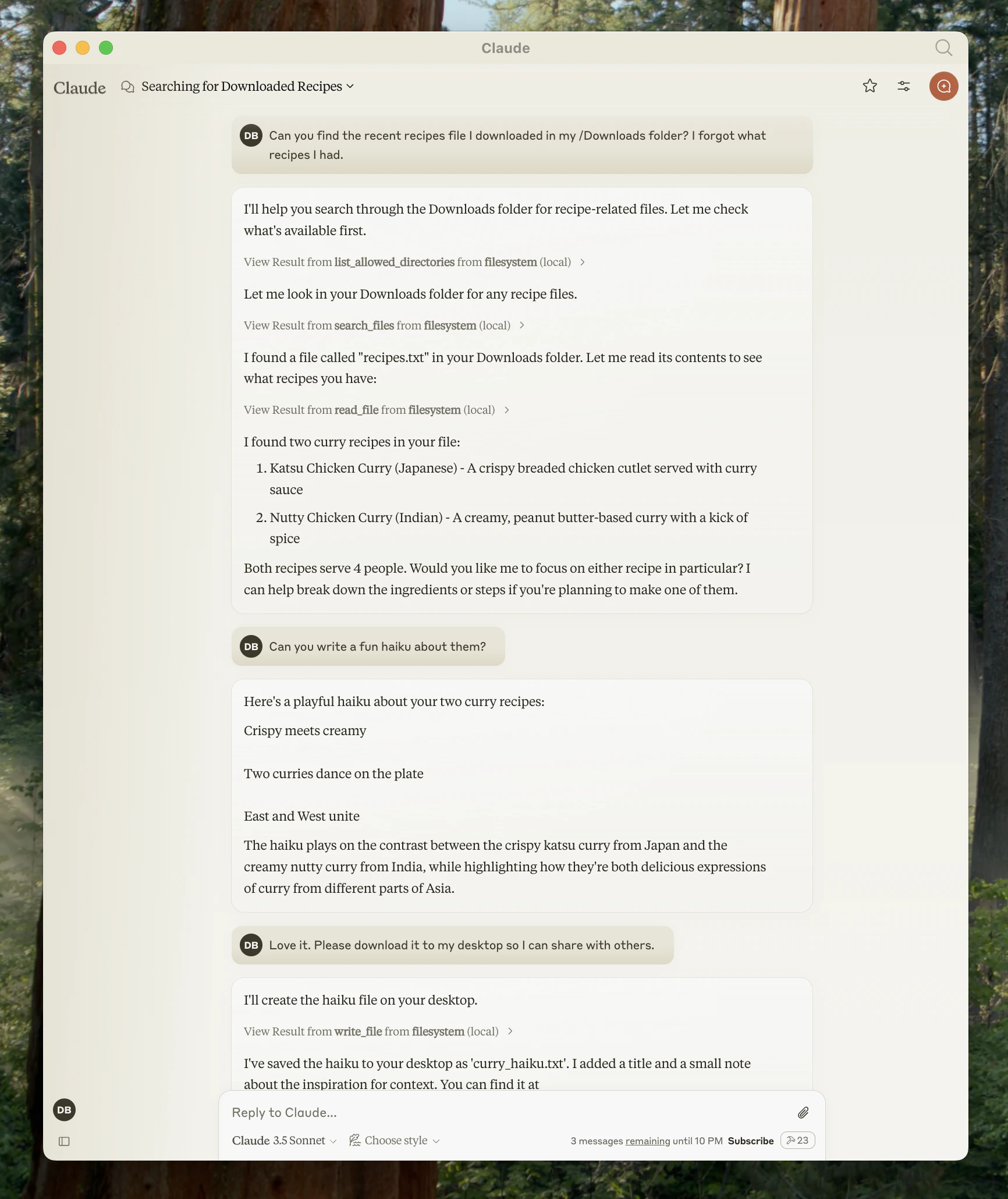 别担心 — 在执行这些操作之前,它会征求你的许可!
## 1. 下载 Claude for Desktop
首先下载 [Claude for Desktop](https://claude.ai/download),选择 macOS 或 Windows 版本。(Claude for Desktop 目前尚不支持 Linux。)
按照安装说明进行操作。
如果你已经安装了 Claude for Desktop,请确保它是最新版本 - 点击电脑上的 Claude 菜单并选择"检查更新..."
因为服务器是本地运行的,MCP 目前只支持桌面主机。远程主机正在积极开发中。
## 2. 添加文件系统 MCP 服务器
要添加这个文件系统功能,我们将在 Claude for Desktop 中安装一个预构建的[文件系统 MCP 服务器](https://github.com/modelcontextprotocol/servers/tree/main/src/filesystem)。这是 Anthropic 和社区创建的数十个[服务器](https://github.com/modelcontextprotocol/servers/tree/main)之一。
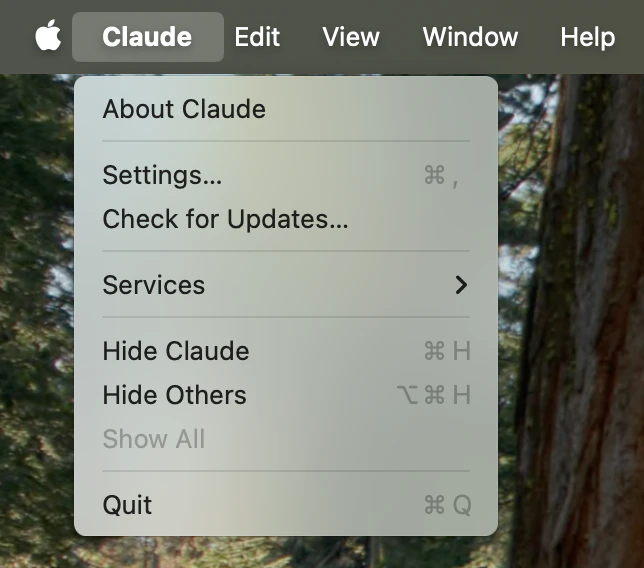
首先打开电脑上的 Claude 菜单并选择"设置..."。请注意,这不是应用程序窗口中的 Claude 账户设置。
在 Mac 上应该是这样的:
别担心 — 在执行这些操作之前,它会征求你的许可!
## 1. 下载 Claude for Desktop
首先下载 [Claude for Desktop](https://claude.ai/download),选择 macOS 或 Windows 版本。(Claude for Desktop 目前尚不支持 Linux。)
按照安装说明进行操作。
如果你已经安装了 Claude for Desktop,请确保它是最新版本 - 点击电脑上的 Claude 菜单并选择"检查更新..."
因为服务器是本地运行的,MCP 目前只支持桌面主机。远程主机正在积极开发中。
## 2. 添加文件系统 MCP 服务器
要添加这个文件系统功能,我们将在 Claude for Desktop 中安装一个预构建的[文件系统 MCP 服务器](https://github.com/modelcontextprotocol/servers/tree/main/src/filesystem)。这是 Anthropic 和社区创建的数十个[服务器](https://github.com/modelcontextprotocol/servers/tree/main)之一。
首先打开电脑上的 Claude 菜单并选择"设置..."。请注意,这不是应用程序窗口中的 Claude 账户设置。
在 Mac 上应该是这样的:
 在设置窗格的左侧栏中点击"开发者",然后点击"编辑配置":
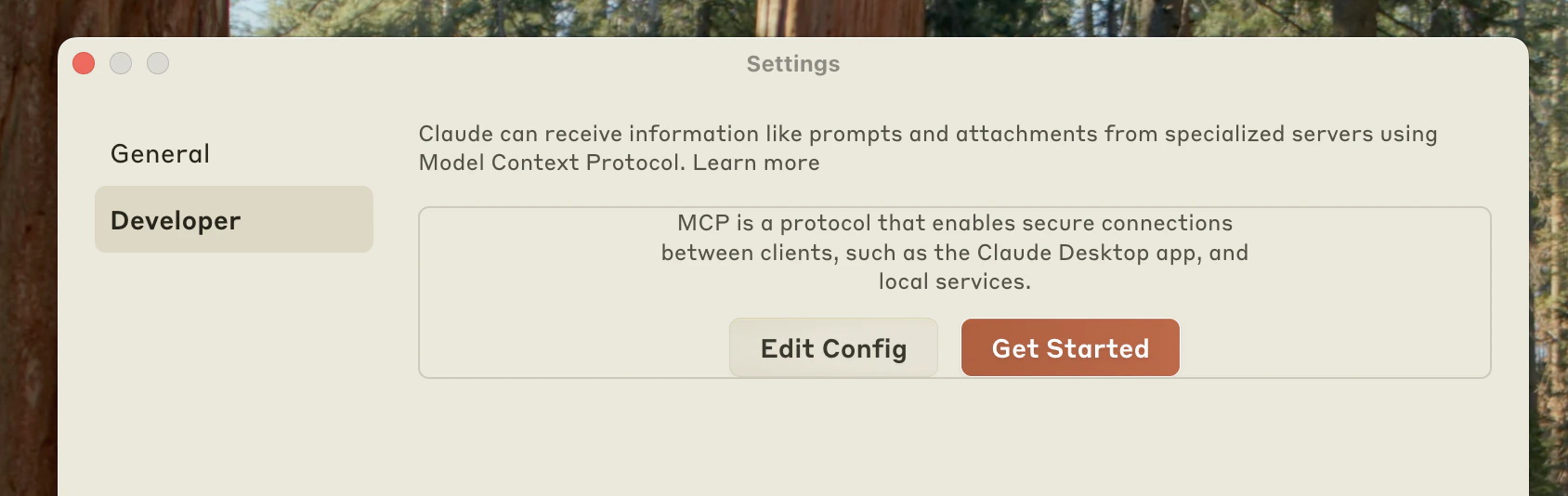 如果你还没有配置文件,这将在以下位置创建一个配置文件:
* macOS: `~/Library/Application Support/Claude/claude_desktop_config.json`
* Windows: `%APPDATA%\Claude\claude_desktop_config.json`
并在你的文件系统中显示该文件。
在任意文本编辑器中打开配置文件。用以下内容替换文件内容:
```json theme={null}
{
"mcpServers": {
"filesystem": {
"command": "npx",
"args": [
"-y",
"@modelcontextprotocol/server-filesystem",
"/Users/username/Desktop",
"/Users/username/Downloads"
]
}
}
}
```
```json theme={null}
{
"mcpServers": {
"filesystem": {
"command": "npx",
"args": [
"-y",
"@modelcontextprotocol/server-filesystem",
"C:\\Users\\username\\Desktop",
"C:\\Users\\username\\Downloads"
]
}
}
}
```
确保将 `username` 替换为你的计算机用户名。这些路径应该指向你希望 Claude 能够访问和修改的有效目录。它被设置为处理桌面和下载文件夹,但你也可以添加更多路径。
你还需要在计算机上安装 [Node.js](https://nodejs.org) 才能正常运行。要验证是否已安装 Node,请打开计算机的命令行。
* 在 macOS 上,从应用程序文件夹打开终端
* 在 Windows 上,按 Windows + R,输入"cmd",然后按回车
进入命令行后,通过输入以下命令验证是否已安装 Node:
```bash theme={null}
node --version
```
如果你收到"command not found"或"node is not recognized"错误,请从 [nodejs.org](https://nodejs.org/) 下载 Node。
**配置文件是如何工作的?**
这个配置文件告诉 Claude for Desktop 每次启动应用程序时要启动哪些 MCP 服务器。在这种情况下,我们添加了一个名为"filesystem"的服务器,它将使用 Node 的 `npx` 命令来安装和运行 `@modelcontextprotocol/server-filesystem`。这个服务器(在[这里](https://github.com/modelcontextprotocol/servers/tree/main/src/filesystem)描述)将让你在 Claude for Desktop 中访问文件系统。
**命令权限**
Claude for Desktop 将以你的用户账户权限运行配置文件中的命令,并可以访问你的本地文件。只有在你理解并信任来源时才添加命令。
## 3. 重启 Claude
更新配置文件后,你需要重启 Claude for Desktop。
重启后,你应该在输入框的右下角看到一个锤子
如果你还没有配置文件,这将在以下位置创建一个配置文件:
* macOS: `~/Library/Application Support/Claude/claude_desktop_config.json`
* Windows: `%APPDATA%\Claude\claude_desktop_config.json`
并在你的文件系统中显示该文件。
在任意文本编辑器中打开配置文件。用以下内容替换文件内容:
```json theme={null}
{
"mcpServers": {
"filesystem": {
"command": "npx",
"args": [
"-y",
"@modelcontextprotocol/server-filesystem",
"/Users/username/Desktop",
"/Users/username/Downloads"
]
}
}
}
```
```json theme={null}
{
"mcpServers": {
"filesystem": {
"command": "npx",
"args": [
"-y",
"@modelcontextprotocol/server-filesystem",
"C:\\Users\\username\\Desktop",
"C:\\Users\\username\\Downloads"
]
}
}
}
```
确保将 `username` 替换为你的计算机用户名。这些路径应该指向你希望 Claude 能够访问和修改的有效目录。它被设置为处理桌面和下载文件夹,但你也可以添加更多路径。
你还需要在计算机上安装 [Node.js](https://nodejs.org) 才能正常运行。要验证是否已安装 Node,请打开计算机的命令行。
* 在 macOS 上,从应用程序文件夹打开终端
* 在 Windows 上,按 Windows + R,输入"cmd",然后按回车
进入命令行后,通过输入以下命令验证是否已安装 Node:
```bash theme={null}
node --version
```
如果你收到"command not found"或"node is not recognized"错误,请从 [nodejs.org](https://nodejs.org/) 下载 Node。
**配置文件是如何工作的?**
这个配置文件告诉 Claude for Desktop 每次启动应用程序时要启动哪些 MCP 服务器。在这种情况下,我们添加了一个名为"filesystem"的服务器,它将使用 Node 的 `npx` 命令来安装和运行 `@modelcontextprotocol/server-filesystem`。这个服务器(在[这里](https://github.com/modelcontextprotocol/servers/tree/main/src/filesystem)描述)将让你在 Claude for Desktop 中访问文件系统。
**命令权限**
Claude for Desktop 将以你的用户账户权限运行配置文件中的命令,并可以访问你的本地文件。只有在你理解并信任来源时才添加命令。
## 3. 重启 Claude
更新配置文件后,你需要重启 Claude for Desktop。
重启后,你应该在输入框的右下角看到一个锤子  图标:
图标:
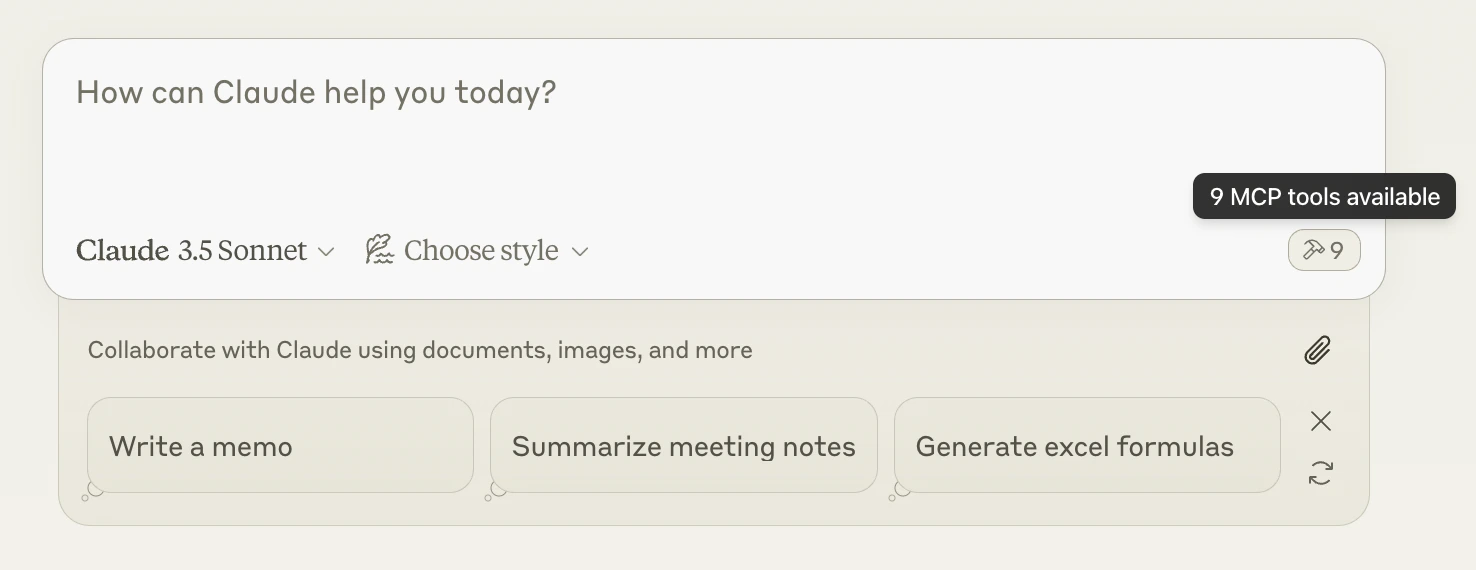 点击锤子图标后,你应该看到文件系统 MCP 服务器提供的工具:
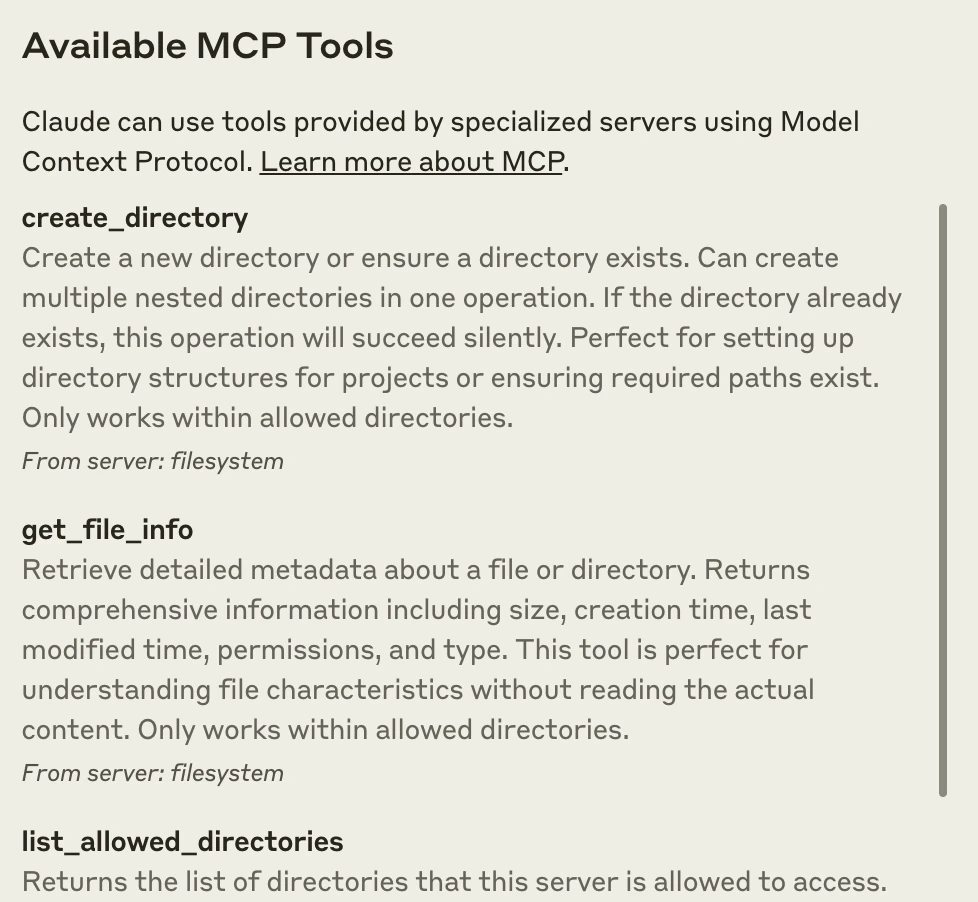 如果你的服务器没有被 Claude for Desktop 识别,请查看[故障排除](#troubleshooting)部分获取调试提示。
## 4. 试一试!
现在你可以与 Claude 交谈并询问有关文件系统的问题。它应该知道何时调用相关工具。
你可以尝试问 Claude 这些问题:
* 你能写一首诗并保存到我的桌面吗?
* 我的下载文件夹里有哪些工作相关的文件?
* 你能把我桌面上的所有图片移动到一个名为"Images"的新文件夹吗?
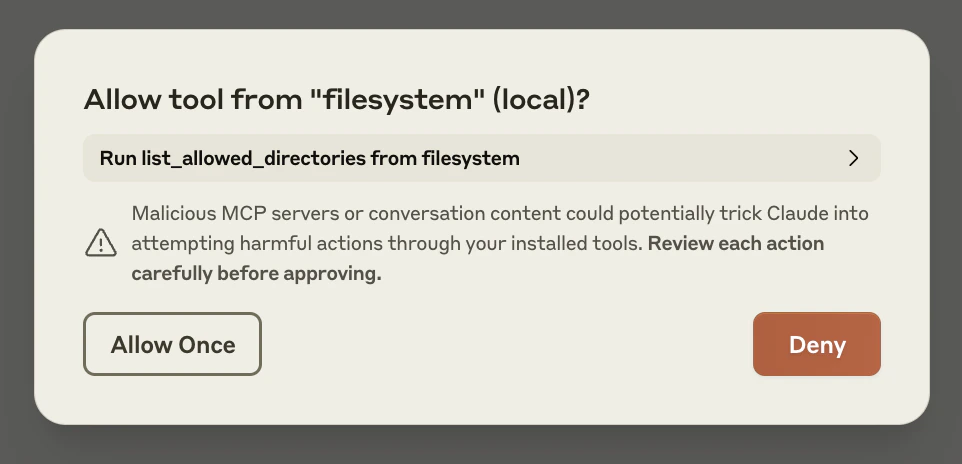
根据需要,Claude 会调用相关工具并在采取行动前寻求你的批准:
如果你的服务器没有被 Claude for Desktop 识别,请查看[故障排除](#troubleshooting)部分获取调试提示。
## 4. 试一试!
现在你可以与 Claude 交谈并询问有关文件系统的问题。它应该知道何时调用相关工具。
你可以尝试问 Claude 这些问题:
* 你能写一首诗并保存到我的桌面吗?
* 我的下载文件夹里有哪些工作相关的文件?
* 你能把我桌面上的所有图片移动到一个名为"Images"的新文件夹吗?
根据需要,Claude 会调用相关工具并在采取行动前寻求你的批准:
 ## 故障排除
1. 完全重启 Claude for Desktop
2. 检查你的 `claude_desktop_config.json` 文件语法
3. 确保 `claude_desktop_config.json` 中包含的文件路径有效,并且是绝对路径而不是相对路径
4. 查看[日志](#从-claude-for-desktop-获取日志)以了解服务器为什么无法连接
5. 在命令行中,尝试手动运行服务器(像在 `claude_desktop_config.json` 中那样替换 `username`)看看是否有任何错误:
```bash theme={null}
npx -y @modelcontextprotocol/server-filesystem /Users/username/Desktop /Users/username/Downloads
```
```bash theme={null}
npx -y @modelcontextprotocol/server-filesystem C:\Users\username\Desktop C:\Users\username\Downloads
```
Claude.app 与 MCP 相关的日志写入以下位置的日志文件:
* macOS: `~/Library/Logs/Claude`
* Windows: `%APPDATA%\Claude\logs`
* `mcp.log` 将包含有关 MCP 连接和连接失败的一般日志。
* 名为 `mcp-server-SERVERNAME.log` 的文件将包含来自指定服务器的错误(stderr)日志。
你可以运行以下命令列出最近的日志并跟踪新的日志(在 Windows 上,它只会显示最近的日志):
```bash theme={null}
# 检查 Claude 的错误日志
tail -n 20 -f ~/Library/Logs/Claude/mcp*.log
```
```bash theme={null}
type "%APPDATA%\Claude\logs\mcp*.log"
```
如果 Claude 尝试使用工具但失败了:
1. 检查 Claude 的日志是否有错误
2. 验证你的服务器是否能正常构建和运行
3. 尝试重启 Claude for Desktop
请参考我们的[调试指南](/docs/tools/debugging)获取更好的调试工具和更详细的指导。
如果你配置的服务器无法加载,并且在其日志中看到路径中包含 `${APPDATA}` 的错误,你可能需要在 `claude_desktop_config.json` 的 `env` 键中添加 `%APPDATA%` 的展开值:
```json theme={null}
{
"brave-search": {
"command": "npx",
"args": ["-y", "@modelcontextprotocol/server-brave-search"],
"env": {
"APPDATA": "C:\\Users\\user\\AppData\\Roaming\\",
"BRAVE_API_KEY": "..."
}
}
}
```
进行此更改后,再次启动 Claude Desktop。
**NPM 应该全局安装**
如果你没有全局安装 NPM,`npx` 命令可能会继续失败。如果已经全局安装了 NPM,你的系统上应该存在 `%APPDATA%\npm`。如果没有,你可以通过运行以下命令全局安装 NPM:
```bash theme={null}
npm install -g npm
```
## 下一步
查看我们的官方 MCP 服务器和实现示例库
现在构建你自己的自定义服务器,在 Claude for Desktop 和其他客户端中使用
## 故障排除
1. 完全重启 Claude for Desktop
2. 检查你的 `claude_desktop_config.json` 文件语法
3. 确保 `claude_desktop_config.json` 中包含的文件路径有效,并且是绝对路径而不是相对路径
4. 查看[日志](#从-claude-for-desktop-获取日志)以了解服务器为什么无法连接
5. 在命令行中,尝试手动运行服务器(像在 `claude_desktop_config.json` 中那样替换 `username`)看看是否有任何错误:
```bash theme={null}
npx -y @modelcontextprotocol/server-filesystem /Users/username/Desktop /Users/username/Downloads
```
```bash theme={null}
npx -y @modelcontextprotocol/server-filesystem C:\Users\username\Desktop C:\Users\username\Downloads
```
Claude.app 与 MCP 相关的日志写入以下位置的日志文件:
* macOS: `~/Library/Logs/Claude`
* Windows: `%APPDATA%\Claude\logs`
* `mcp.log` 将包含有关 MCP 连接和连接失败的一般日志。
* 名为 `mcp-server-SERVERNAME.log` 的文件将包含来自指定服务器的错误(stderr)日志。
你可以运行以下命令列出最近的日志并跟踪新的日志(在 Windows 上,它只会显示最近的日志):
```bash theme={null}
# 检查 Claude 的错误日志
tail -n 20 -f ~/Library/Logs/Claude/mcp*.log
```
```bash theme={null}
type "%APPDATA%\Claude\logs\mcp*.log"
```
如果 Claude 尝试使用工具但失败了:
1. 检查 Claude 的日志是否有错误
2. 验证你的服务器是否能正常构建和运行
3. 尝试重启 Claude for Desktop
请参考我们的[调试指南](/docs/tools/debugging)获取更好的调试工具和更详细的指导。
如果你配置的服务器无法加载,并且在其日志中看到路径中包含 `${APPDATA}` 的错误,你可能需要在 `claude_desktop_config.json` 的 `env` 键中添加 `%APPDATA%` 的展开值:
```json theme={null}
{
"brave-search": {
"command": "npx",
"args": ["-y", "@modelcontextprotocol/server-brave-search"],
"env": {
"APPDATA": "C:\\Users\\user\\AppData\\Roaming\\",
"BRAVE_API_KEY": "..."
}
}
}
```
进行此更改后,再次启动 Claude Desktop。
**NPM 应该全局安装**
如果你没有全局安装 NPM,`npx` 命令可能会继续失败。如果已经全局安装了 NPM,你的系统上应该存在 `%APPDATA%\npm`。如果没有,你可以通过运行以下命令全局安装 NPM:
```bash theme={null}
npm install -g npm
```
## 下一步
查看我们的官方 MCP 服务器和实现示例库
现在构建你自己的自定义服务器,在 Claude for Desktop 和其他客户端中使用